Test an Auto QM form with Form Validator
Use Auto QM Form Validator to test an Auto QM form against a sample of real customer interactions before publishing the form. Form Validator helps you validate how the entire form, including any custom questions, will score interactions and provides insight into scoring outcomes before deployment. Form Validator evaluates the entire form, including form-level context and custom questions.
Test results are generated in Test mode and do not affect agent performance records or production evaluations. Testing a form before publishing can help you identify issues with custom questions, refine evaluation criteria, and build confidence in your Auto QM results prior to deploying an Auto QM form.
NOTE Auto QM supports testing for voice, chat, and email contacts.
Prerequisites
-
Your organization has the Analytics Enterprise Plus or QM Intelligence license. One of these licenses is required to use Auto QM and manage custom questions.
-
You have the Edit Auto QM permission.
-
To manage custom questions, you need the Create Auto QM Questions permission.
-
To create questions that use custom metadata, both of the following are required:
-
Your organization has the Analytics Enterprise or Analytics Enterprise Plus license.
-
Custom metadata is configured on the Metadata Manager page. See Manage custom metadata fields.
-
-
To test the form, you need the View speech to text Analytics and Create Auto QM Questions permissions.
-
The form cannot be published. The form must be in an editable state.
Page location
Application Management > Auto QM Configuration > Auto QM Evaluation Form Manager
Procedures
Run Form Validator
NOTE You must save a newly created form before testing it. This requirement applies only to new forms. After you save the form at least once, the Test Form button becomes available.
-
Open the Auto QM form that you want to test.
-
Click Test Form. The Select interactions for testing window opens.
-
Use the available filters to identify interactions for testing.
NOTE Backend conditions also filter the contacts that the system displays in the results. The system displays only voice contacts with an available transcript and only chat and email contacts with a valid text transcript.
-
Select a minimum of 5 interactions. You can select a maximum of 10 interactions.
-
Review the selected interactions.
BEST PRACTICE Select a representative sample of customer interactions that meet Auto QM processing requirements. For example, avoid selecting interactions that are shorter than 30 seconds or interactions that do not contain sufficient turns in the conversation. Interactions that do not meet the minimum requirements are considered invalid contacts and Auto QM will not run on those interactions. For more information about thresholds, see the Prerequisites section of Monitor automated evaluation scores.
-
(Optional) Click the Open contact in media player icon to open an interaction directly for additional review before including it in the test.
-
Click Run test. Form Validator evaluates the selected interactions using the current version of the form. A loading screen appears as Auto QM analyzes the interactions and generates results. The length of time required depends on the number of selected interactions and the complexity of the form.
NOTE If the test exceeds the 5-minute timeout limit, Form Validator displays a timeout message and provides an option to retry the test.
Analyze test results
This information helps you determine whether the form is producing the expected results across multiple interactions.
-
When the test is complete, Form Validator displays results in the Test evaluation results window. Review the test results, including the number of contacts evaluated and the average, highest, and lowest scores. You can also review the question breakdown and answers spread section to analyze question-level performance, identify top and low scoring contacts, and view answer distribution across evaluated interactions.
Field Description Contacts evaluated Number of selected contacts that were successfully evaluated out of the total number selected for testing. Average score Average evaluation score across the successfully completed test evaluations. Highest score Highest overall evaluation score among the tested contacts. If multiple contacts received the highest score, all corresponding contact IDs are listed. Lowest score Lowest overall evaluation score among the tested contacts. If multiple contacts received the lowest score, all corresponding contact IDs are listed. 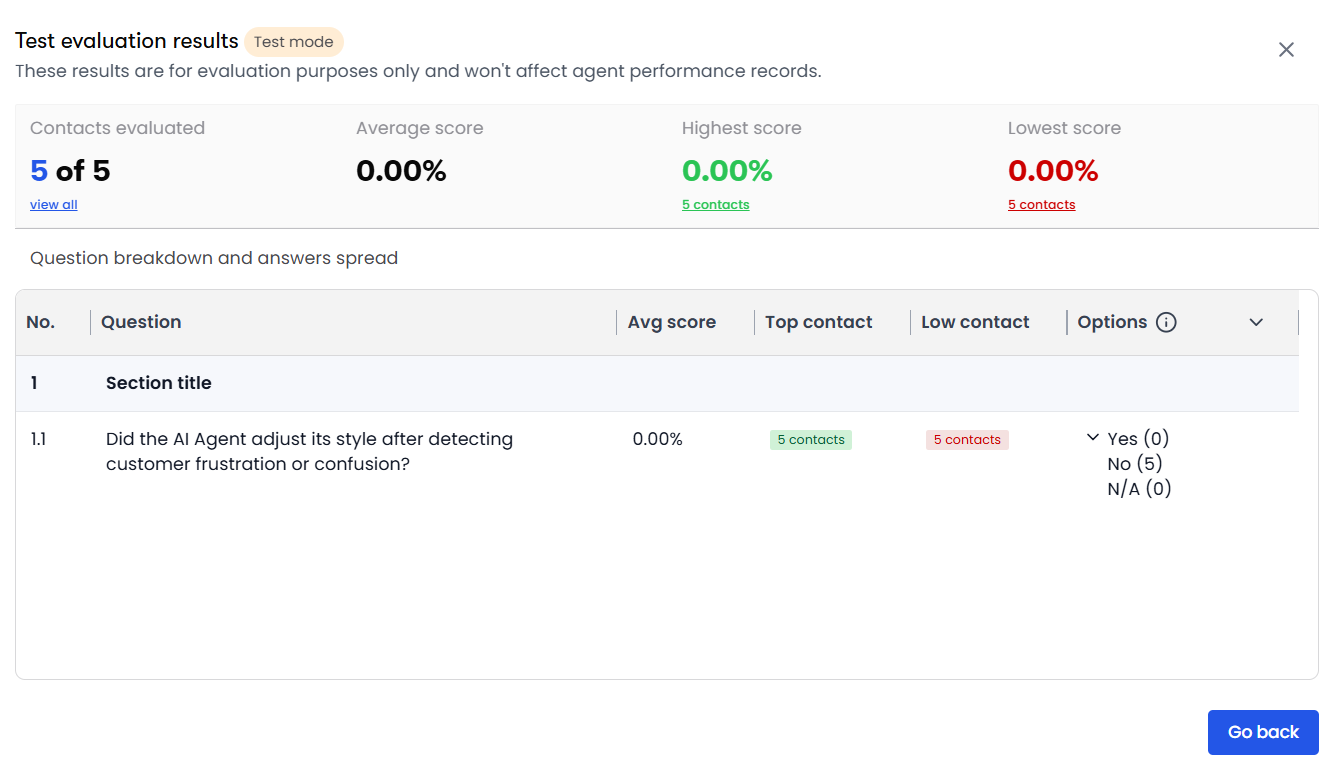
-
(Optional) You can select View all to open contact-level results, select a tested interaction, and review detailed scoring information.
-
The Question breakdown and answers spread section provides detailed results for each form question.
Field Description Avg score Average score for the question across the successfully completed test evaluations. Top contact Contact or contacts that received the highest score for the question. If multiple contacts received the highest score, all corresponding contact IDs are listed. Low contact Contact or contacts that received the lowest score for the question. If multiple contacts received the lowest score, all corresponding contact IDs are listed. Options Available answer options for the question and the number of evaluated contacts for which each option was selected. NOTE Questions in the Customer Effort category are not eligible for testing in Form Validator because they are not AI-scored. These questions do not display a score. In the contact-level view, they display the message: "This question is not AI scored, so it was excluded from the form validation process."
-
(Optional) If a question does not perform as expected, you can return to the form editor, make changes, save your changes, and run another test.
-
Publish the form if you are satisfied with the test results. The form is then available for production Auto QM evaluations.
IMPORTANT If the form contains any draft custom questions, you are prompted to publish those questions along with the evaluation form.
Related topics