Genie workspace at a glance
Get to know the Genie workspace and start chatting with Genie Bot.
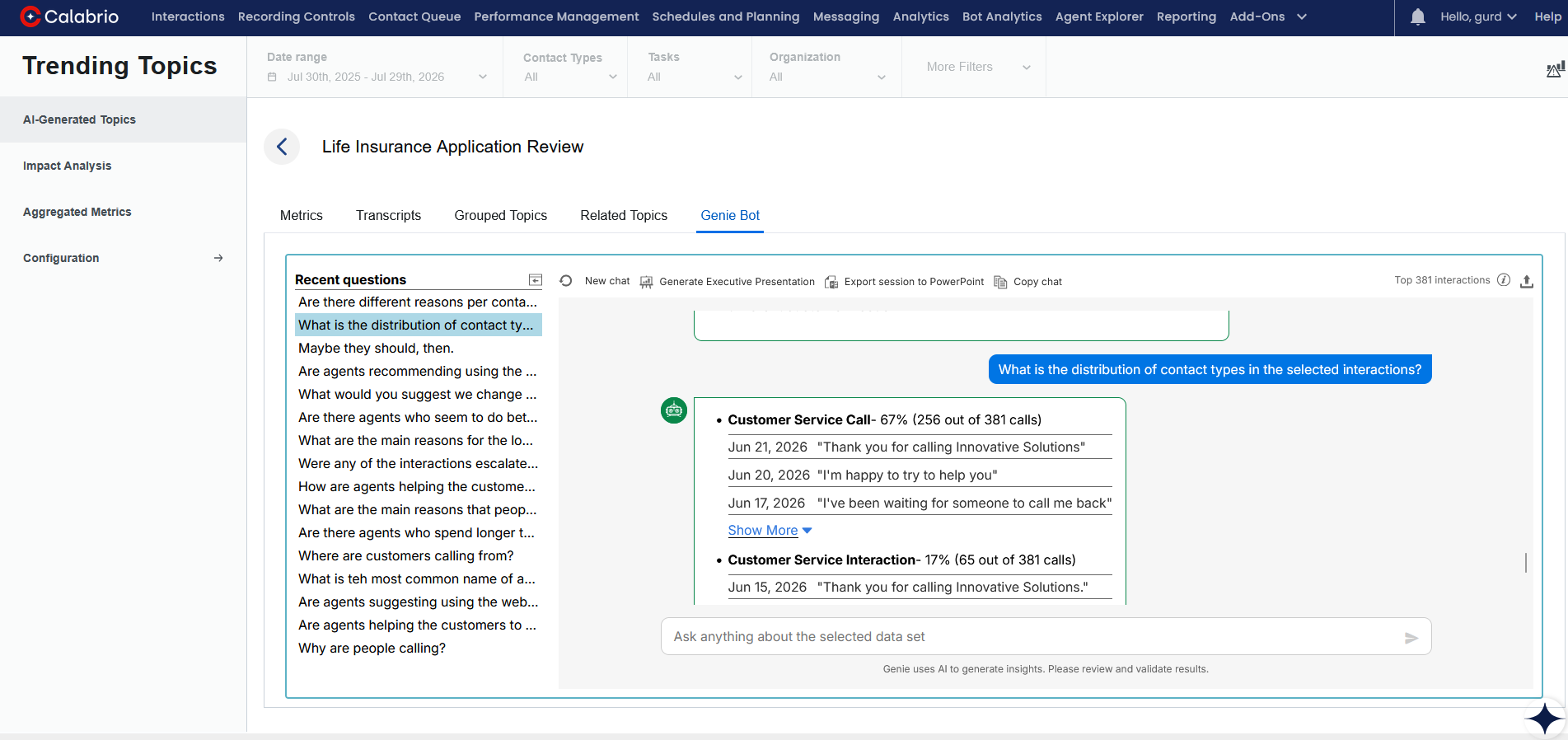
|
Workspace options |
Description |
|---|---|
|
Data Set filters |
The Data Set filters on the top of the workspace define the Data Set used for analysis. If you change the Data Set filters, the Genie Bot session is reset, and the questions and answers are cleared. If you return to the previously used Data Set before new interactions are added, the Genie Bot session is restored. |
|
|
Open or close the panel displaying recently asked questions from the current user. |
|
|
Clear the Genie Bot chat area and start a new chat. |
|
|
Copy the questions and answers of the current chat to your Clipboard. |
|
|
(missing or bad snippet) |
|
|
Export the current Genie Bot analysis into a PowerPoint presentation, including the questions and answers in the Genie session, so you can easily share insights with your team. |
|
|
Upload a sample PowerPoint presentation as a template for branded Genie Bot reports. |
|
|
Send the question to Genie Bot for analysis and response. |
|
|
Clear the question input field. |
|
|
Cancel the question sent to Genie Bot while the response is being processed. The question is added to the Recent Questions list. |
|
Top [number] interactions |
The number of interactions used in the analysis. Up to 100 interactions that best match the filter are included, based on the data set and interaction length. |
|
Show more / fewer topics |
Display more or fewer topics per answer. By default up to five (5) topics are displayed for each answer. |
|
Show more / Show fewer Appears as a link below a list of quotes. |
Control the number of quotes Genie Bot displays per topic: Show more: Display up to ten (10) quotes per topic. Show fewer: Display up to three (3) quotes per topic. This is the default. |
|
Genie Bot answers |
Genie Bot answers are divided into topics. Each answer contains up to five (5) topics, with up to 10 quotes per topic. Clicking a quote loads the interaction in the Media Player in a new tab. See Chat with Genie |
|
Suggested questions |
The bottom of the chat area contains up to three (3) suggested questions based on the selected data set and the current chat session context. |
|
Right Pane Genie Insights |
|


Related topics